Antigravity A1: Follow Me Bundle Interactive Manual
Complete operational reference and interactive simulator for flying the Antigravity A1 autonomously using the Watch Remote and Ring Remote—without the Vision Goggles or Grip Motion Controller.
⌚ Interactive Watch Remote Simulator
Click the navigation buttons below to explore the Watch Remote touchscreen menus, swipe zones, and manual touch sliders.
Tap box to toggle recording / Deep Track
🛸 Sky Genie & Ring Trajectory Visualizer
Click any autonomous maneuver or Ring gesture below to watch the A1's top-down flight trajectory relative to your Watch GPS position.
📦 Follow Me Bundle Hardware Specifications
Installing the Full-Coverage Propeller Guards and High-Capacity Battery increases takeoff weight from 249g to 351g, activating automatic Remote ID broadcast and capping max speed at 11 m/s (25 mph).
| Component | Verified Technical Specs | Field Operational Notes |
|---|---|---|
| A1 Aircraft (Follow Me Config) |
• Weight: 351 g (with Full-Coverage Guards & High-Cap Battery) • Max Flight Time: Up to 23 mins (18–20 mins real-world) • Max Speed (Guards On): 11 m/s (25 mph) • Internal Storage: 20 GB + microSD up to 1 TB (UHS-I V30) • Required Firmware: V5.2.0 or later |
Motorized landing gear deploys automatically on startup to protect the bottom 360° fisheye lens. Features omnidirectional binocular vision + bottom IR sensors. |
| Watch Remote |
• Display: 1.72" LCD (356×400, 550 nits, 30 Hz) • Dimensions / Weight: 42 × 49 × 16 mm | 44.7 g (1.6 oz) • Battery: 950 mAh (>5 hrs active tracking | >3 days standby) • Internal Storage: 8 GB (~5.27 GB usable) • Audio: Built-in Mic (-39 dBV, 130 dB Max SPL, 70 dB SNR) + Speaker • Sensors & Rating: GNSS (GPS), 6-axis gyro, compass | IP67 • Required Firmware: V2.2.0 or later |
Acts as the primary command center. Sends live GPS telemetry to the drone so tracking stays locked even when you pass behind trees or rock outcrops. Practical range: 30–60 m (up to 150 m unobstructed). |
| Ring Remote |
• Weight & Fit: 8.2 g (0.3 oz) | 46–70 mm finger circumference • Wireless Protocol: Bluetooth BLE 5.3 (<0 dBm EIRP) • Battery Life: >5 hours (charges via included clip) • Durability: IP67 water-resistant (-10°C to 45°C) |
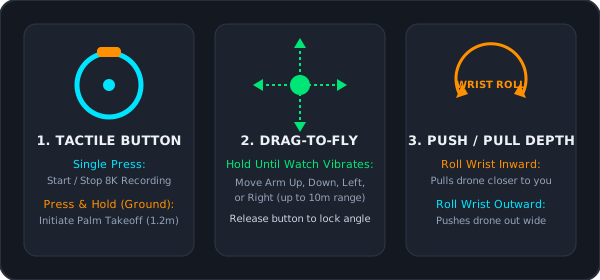
Must be worn on the exact same hand/arm as the Watch Remote so the 6-axis gyroscopes align during Drag-to-Fly gestures. Gesture range: up to 10 m (32 ft). |
⚡ Strict Power-On & Pairing Hierarchy
Turning the devices on out of order is the #1 cause of the Ring Remote failing to trigger gestures. Always follow this exact 4-step order:
Before your first wearable flight, connect your phone to the A1 and verify the app is on V1.3.0+, aircraft is on V5.2.0+, and Watch is on V2.2.0+. Update each intelligent flight battery individually.
Press and hold the Watch side button. On boot, select whether you are wearing it on your Left Wrist or Right Wrist so spatial wrist-roll gestures map accurately.
Slip the Ring Remote onto your index finger on the same arm as the Watch. Power it on and wait for the subtle blue status LED to confirm BLE 5.3 bonding with the Watch.
Short-press, then long-press the A1 power button while holding the fuselage off the ground so the motorized landing gear extends cleanly without scraping the bottom 360° lens.
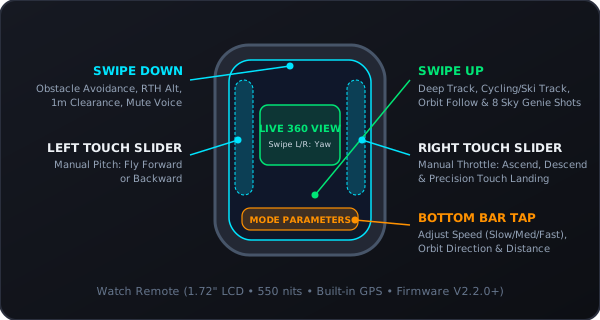
🧭 Watch Remote Touchscreen Quadrant Architecture
Visual map of every swipe zone, touch slider, and parameter bar on the 1.72-inch Watch display:
💍 Ring Remote & "Drag-to-Fly" Spatial Gestures
How to launch, toggle recording, and reposition the A1 in midair up to 10 meters away without looking at a screen:
🎥 Interactive Camera & Exposure Scenario Advisor
Select your shooting environment below for tailored resolution, frame rate, shutter, and encoding settings on the dual 1/1.28" sensors ($f/2.2$):
Solo Vlog / Walking & Trail Follow
Why this works: 8K30 gives maximum resolution when punching in or reframing dual angles (16:9 YouTube + 9:16 Shorts) from a single flight.
✨ Sky Genie Modes (In-Flight)
Triggered directly by swiping up on the Watch Remote. Tap the bottom bar before starting to set Speed (Slow/Med/Fast) and Distance:
- Arc Out: Flies toward you, wraps 180° around your side, and pulls backward/upward on the opposite side.
- Arc Shot: Approaches along an entry path, curves smoothly past you, and retreats.
- Oval Orbit: Sweeps out wide for landscape parallax and cuts back in close along an ellipse.
- Spiral Ascent: Orbits your position while steadily climbing and widening its radius.
- Orbit: Classic constant-radius 360° circle around a stationary point.
- Fly Away (Dronie): Flies straight backward and upward to reveal the environment.
- Ascend: Straight vertical climb directly overhead (great for top-down nadir transitions).
- Antigravity Line / Comet: Rapid vertical climb paired with a swooping parabolic dive.
🎬 Auto Edit ("Shot Genie" in App v1.3.0)
Because the A1 records the full 360° sphere, framing happens after landing inside the Antigravity App or Antigravity Studio desktop software:
- Watch Remote Exclusive Templates (v1.3.0): Connect via Quick Transfer and open Auto Edit. The app reads your Watch GPS and Sky Genie telemetry logs to automatically keep you centered, apply speed ramps to Arc Out moves, and cut to music in ~10 seconds.
- Free Your Frame (Multi-Aspect Export): Drop manual keyframes in Quick Edit to pan smoothly from the trail ahead back to yourself. Export the exact same flight in 16:9 / 2.35:1 for YouTube and 9:16 for vertical shorts.
- Desktop Premiere Workflow: Transfer the
.INSVfiles from your microSD card to Mac/PC and use Antigravity Studio or the Adobe Premiere Reframe Plug-in for full DNG/8K color grading.
✅ Interactive Field Pre-Flight Checklist
0 / 8 CompletedTap any item to check it off. Your progress is automatically saved in your browser on your phone.
🎬 Official Video Tutorials & Reference Manuals
Direct links to Antigravity's official video walkthroughs, PDF diagrams, and independent field tests: